
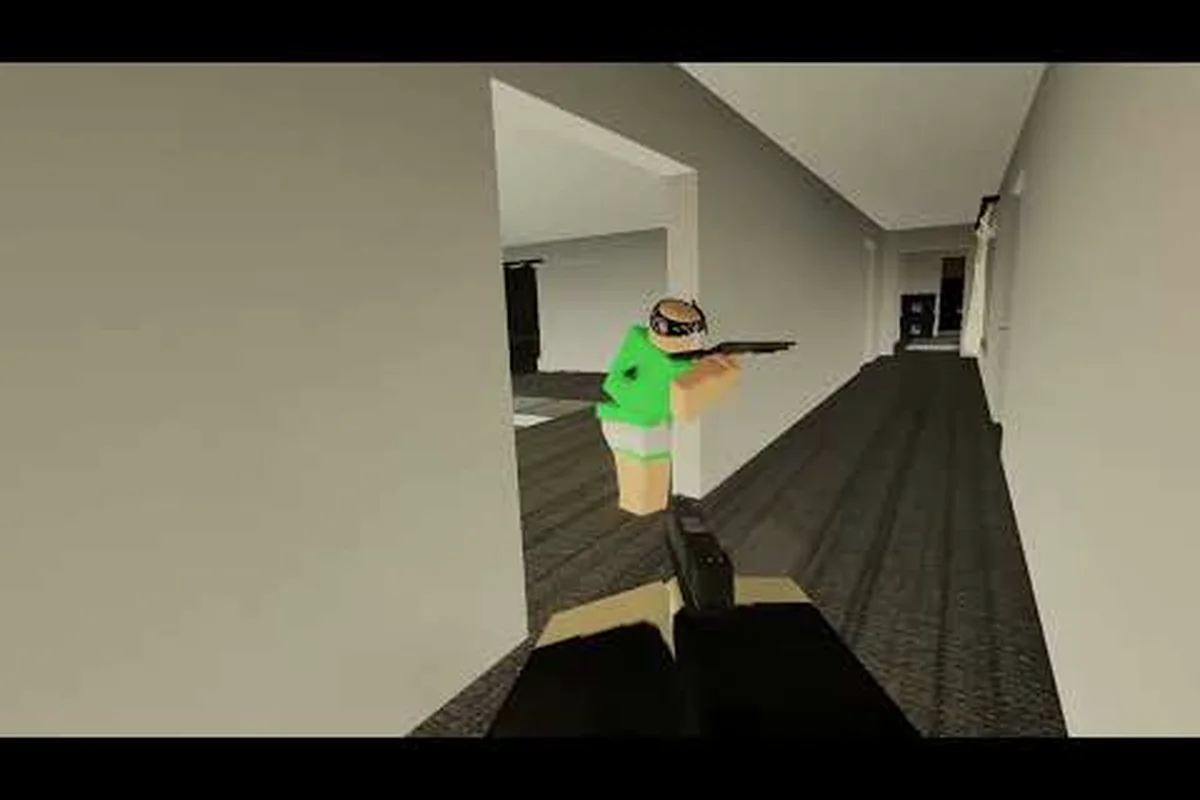
Running REALISTIC HOME DEFENSE on PC is the smoothest way to play this Roblox home-invasion experience, and the difference shows up the moment you enter a raid. Your mouse aims faster, your frames hold steadier, and crossplay lobbies fill in seconds instead of minutes. This breakdown covers what the PC version actually asks of your hardware, how crossplay shapes your matches, and which settings keep the action readable when four intruders breach the same hallway.
The core appeal is simple: you defend a house, you hold angles, and you react to sound. On PC, that loop finally feels precise. Below you'll find realistic expectations for frame rates, a settings plan for mid-range rigs, and honest notes on what the PC experience does and doesn't fix.
What the PC Version Actually Requires
Roblox experiences don't ship with traditional spec sheets, so the practical answer is that your browser or client does the heavy lifting. Still, REALISTIC HOME DEFENSE leans on lighting, ragdolls, and physics props, which means a weak laptop will stutter during breaches even if it runs other Roblox games fine. Community reports put the comfortable floor around a modern dual-core CPU, 8 GB of RAM, and integrated graphics from the last few years.
Rather than trusting a single spec sheet, it helps to sort real player reports into four practical tiers, because the same hardware behaves very differently once breach lighting, ragdoll physics, and stacked physics props all load at once. The jump from a 4 GB low-end laptop to an 8 GB budget desktop is the clearest dividing line: below it, rounds dip into the 20-30 FPS range during multiplayer breaches, while 8 GB with a Vega 8-class iGPU holds a playable 40-60 FPS once shadows and prop density are dialed down. Mid-range 16 GB builds with a GTX 1650 smooth out the stutter entirely, and RTX 3060-class rigs lock past 120 FPS.
| Rig Tier | Typical Hardware | Expected FPS | Playable? |
|---|---|---|---|
| Low-end laptop | Older i3, 4 GB RAM, Intel HD | 20-30 with dips | Barely, expect stutter |
| Budget desktop | Ryzen 3 / i5, 8 GB RAM, Vega 8 | 40-60 | Yes, with settings lowered |
| Mid-range | Ryzen 5 / i5, 16 GB RAM, GTX 1650 | 60-90 | Smooth and consistent |
| High-end | Ryzen 7 / i7, 16 GB+, RTX 3060 | 120+ | Locked and fluid |
The biggest single upgrade for this game is RAM. Players who jump from 4 GB to 8 GB report far fewer freezes when multiple players and props load at once, because Roblox streams assets constantly during a round. If you're on a laptop, plugging into power instead of running on battery also prevents the CPU from throttling mid-raid.
For a fuller hardware discussion that includes console comparisons, the system requirements and device compatibility breakdown is worth a read before you buy anything. That cross-platform context matters here because the tier table above assumes you're running the native Roblox client on Windows; if you're weighing a console against a budget desktop, the console's fixed hardware often sidesteps the 4 GB RAM bottleneck entirely, while the PC path trades that convenience for adjustable shadow and prop-density settings that console players can't touch.
How Crossplay Shapes Your Lobbies
Crossplay is the feature that keeps REALISTIC HOME DEFENSE multiplayer alive. PC players share servers with console and mobile users, which means lobbies fill fast at any hour. The tradeoff is input disparity: mouse aim versus thumbsticks versus touch. In practice, PC defenders tend to win long-range duels, while mobile players often surprise you around corners because their movement is less predictable.
Understanding the mix helps you plan a round: a PC-heavy lobby rewards holding tight sightlines and pre-aiming chokepoints, since mouse users punish any defender caught in the open, while a mobile-heavy lobby calls for aggressive early pushes before touch players settle into their preferred close-range clusters. Crossplay also shifts the economy of a round — precise headshots from mouse-and-keyboard users end fights in a fraction of the shots that controller and touch players need, so the same defensive setup can feel dominant in one lobby and exposed in another. Reading the platform spread during the buy phase tells you whether to invest in long-angle holds or fast rotations.
-
Mouse and keyboard users hold sightlines and pre-aim doorways effectively.
-
Controller players strafe more smoothly and often rush aggressively.
-
Touch players cluster in tight rooms where aim assist and close-range spray matter less.
Crossplay also affects match pacing. A lobby full of PC players tends to end rounds quickly with precise headshots, while mixed lobbies drag longer because mobile users take wider angles and miss more shots. Neither is better, but knowing the mix tells you whether to play patient or push early.
Input handling changes more than raw aim: mouse users can flick to a doorway in a single motion, controller players rely on aim assist to track strafing targets, and touch players use on-screen buttons that limit simultaneous movement and fire. That asymmetry explains why a PC defender holding a long corridor can delete a controller rusher before the strafe animation finishes, while a touch player hugging a corner can still land a close-range spray. If you want to understand how each platform handles aiming and movement, the touch controls and gamepad setup overview explains the input differences in detail.
Performance Tuning That Actually Moves the Needle
Optimization in REALISTIC HOME DEFENSE is less about exotic tweaks and more about removing the settings that cost frames without adding information. Shadows and lighting are the two heaviest toggles in this experience, because interior scenes rely on dynamic light sources that recalculate as players move through rooms.
Start with this priority list: shadow quality is the highest-leverage toggle because interior rooms in Realistic Home Defense spawn multiple dynamic light sources that re-render every time a player crosses a doorway, so dropping shadows to low or off frees the most GPU time per click. Next, cap your frame rate to your monitor's refresh rate — an uncapped Roblox client on a mid-range PC will push 200+ FPS in empty hallways, then stutter hard when a multiplayer round loads props, and capping smooths that delta while cutting heat. On integrated graphics, disable texture detail boosts before touching render distance, since texture memory pressure causes more hitching than draw distance in tight home interiors. Finally, close browsers and Discord overlays: Roblox runs on a single CPU thread for much of its simulation, and background apps competing for that headroom show up as input lag during crossplay firefights, not just lower average FPS.
-
Lower shadow quality first — the single biggest FPS gain in interior maps.
-
Cap your frame rate at your monitor's refresh rate to reduce heat and stutter.
-
Disable texture detail boosts if you're on integrated graphics.
-
Close background apps — browsers and Discord overlays eat into Roblox's CPU headroom.
Beyond in-game settings, a few habits matter. Running Roblox through the standalone client instead of a browser tab typically yields steadier frames, and setting the client to high priority in Windows task manager helps on older CPUs. Players also report that joining a server with fewer than 20 players reduces the prop-loading spikes that cause brief freezes at round start.
| Setting | FPS Impact | Visual Cost | Recommendation |
|---|---|---|---|
| Shadow quality | High | Noticeable | Set to low or off |
| Global lighting | Medium | Moderate | Medium is fine |
| Texture quality | Low | Small | Keep high if possible |
| Render distance | Medium | Moderate | Medium for interiors |
| Anti-aliasing | Low | Small | Off on weak GPUs |
The FPS boost and lag fix guide covers the same principles for weaker devices, and several of those fixes carry over to low-end PCs — particularly the mobile guide's advice on capping frame rate and trimming dynamic lighting, both of which map directly onto the shadow and lighting toggles above. The key difference on PC is that you have finer control: instead of a single low/medium/high preset, you can drop shadow quality to low while leaving texture quality high, a split the mobile build doesn't allow. If your rig sits near the minimum PC requirements, apply the mobile guide's background-app cleanup first, since it costs nothing visually, then work down the priority list until multiplayer rounds load without the prop-spike stutter.
Frame Rate Targets by Role
Defenders benefit from higher frame rates than attackers, because holding an angle rewards reaction speed. If you can only hit 45 FPS, play closer to doorways where you don't need to track fast movement across a wide room. Attackers who push aggressively should prioritize a stable 60 FPS over visual fidelity, since stutter during a breach usually means a lost fight.
Network Settings and Ping
Your connection matters as much as your GPU here. Wired ethernet beats Wi-Fi for consistency, and players on distant servers notice delayed hit registration during close-range exchanges. Choose the server region closest to you, and avoid playing during peak hours if your ISP throttles evening traffic.
The Realistic PC Experience, Honestly Assessed
The PC version of REALISTIC HOME DEFENSE delivers the cleanest version of the game's core loop, but it doesn't turn a casual Roblox experience into a tactical shooter. Gunplay is still arcade-leaning, and community commentary has been blunt about that gap — a widely shared critique titled Realistic Home Defense is NOT Realistic by CAM argues the gunplay feels looser than the name suggests.
That's worth knowing before you invest in a high-refresh monitor for this game, because the frame gains are real but modest — a 144Hz panel won't fix the arcade-leaning gunplay CAM criticizes, it just makes the swings feel smoother. What PC actually gives you is:
-
Faster aiming with a mouse, which matters most when holding angles.
-
Steadier frames during multi-player breaches.
-
Better audio positioning through desktop headsets, which helps you hear footsteps.
-
Instant text chat for coordinating with teammates.
Long-form gameplay footage from creators like Votex's REALISTIC HOME DEFENSE session shows how the PC build handles crowded rounds, and the frame consistency in those videos is a fair benchmark for a mid-range rig.
The honest summary: PC removes the technical friction, but the game's design is still lighthearted chaos rather than military simulation. If you enjoy the tension of guarding a hallway with friends, the platform upgrade is worth it. If you want hardcore tactical shooting, this isn't that game.
Practical Setup Checklist Before Your First Raid
Getting your PC ready takes about ten minutes and saves hours of frustration, because the biggest performance killers in realistic home defense on PC aren't your hardware—they're driver mismatches and default settings that push rendering onto integrated graphics. Work through this list once, then forget about it; a stable frame rate above all else keeps your mouse input consistent when you're holding an angle at a doorway, and inconsistent frame pacing is what makes defenders feel like their shots "didn't register" during a breach.
| Setup Step | What It Fixes | Why It Matters in REALISTIC HOME DEFENSE |
|---|---|---|
| Update GPU drivers to latest stable | Driver mismatch stutter | Prevents frame drops during breach moments when defenders hold a doorway angle |
| Force Roblox onto dedicated GPU | Rendering on integrated graphics | Keeps recoil and aim input consistent when switching fire modes indoors |
| Lower shadow quality | GPU load in tight corridors | Frees headroom for the fast sprint/crouch/prone/lean movement cycle |
| Cap frame rate to monitor refresh | Inconsistent frame pacing | Steady frame rate keeps mouse input consistent for doorway holds |
| Wired connection | Packet loss on Wi-Fi | Reduces desync when intruders breach multiple entry points at once |
| Balance audio (game ~70%, voice lower) | Footsteps masked by gunfire | Hearing a window break on the far side of the house decides the round |
| Join low-population server | Lobby congestion on first rounds | Lets you learn the defender role before facing full attacker pressure |
- Update your GPU drivers to the latest stable release
- Set Roblox to run on your dedicated GPU, not integrated graphics
- Lower shadow quality in the in-game settings menu
- Cap frame rate to match your monitor
- Use a wired connection if possible
- Test audio balance so footsteps are audible over gunfire
- Join a low-population server for your first few rounds
Audio deserves special attention. In a game where intruders enter through multiple doors, hearing a window break on the opposite side of the house is often the difference between a clean defense and a chaotic scramble. A cheap desktop headset outperforms laptop speakers by a wide margin, and setting game audio to around 70 percent with voice chat lower keeps footsteps clear.
Mouse sensitivity is the other personal setting worth dialing in early. Lower sensitivity improves precision when holding a doorway, while higher sensitivity helps when you're spinning to cover a breach behind you. Most players settle somewhere in the middle after a few rounds.
If you're brand new to the experience entirely, the beginner guide to getting started walks through the basic roles and objectives before you worry about frame rates. Read it first so you understand what a defender's job actually looks like: which entry points the intruder team can breach, how the round timer pressures attackers into committing, and why holding a doorway beats chasing kills. That context makes the checklist above meaningful—you'll know why capping your frame rate keeps your crosshair steady during a breach, and why footstep audio matters more than raw graphics settings when you're listening for a window break on the far side of the map.
Frequently Asked Questions
Can I play REALISTIC HOME DEFENSE on PC with console and mobile friends?
Yes. Crossplay is enabled by default, so PC players share servers with console and mobile users. Lobbies fill faster as a result, though input differences mean mouse users often have an edge in long-range duels while touch players excel in tight, close-quarters rooms.
What PC specs do I need for smooth performance?
Community reports suggest 8 GB of RAM and a modern dual-core CPU as a comfortable floor, with integrated graphics from recent years handling lower settings. For consistent 60 FPS, a mid-range desktop with a dedicated GPU like a GTX 1650 is the safer target.
Why does my game stutter when a round starts?
Stutter usually comes from asset loading when multiple players and physics props spawn at once. Lowering shadow quality, capping your frame rate, and joining servers with fewer players all reduce these spikes. Running the standalone client instead of a browser tab also helps.
Does lowering graphics settings make enemies harder to see?
Not significantly. Shadows and lighting cost the most frames but contribute little to spotting players. Keep texture quality high if your GPU allows, and reduce shadows first — you'll gain frames without losing the visual cues that matter during a raid.
Is the PC version more competitive than mobile?
It's more precise rather than more competitive. Mouse aim rewards holding angles, and steadier frames help during breaches, but the game's arcade gunplay keeps matches chaotic regardless of platform. Skill and map knowledge still outweigh hardware advantages in most lobbies.
The PC version of REALISTIC HOME DEFENSE gives you the cleanest version of a chaotic, cooperative home-defense loop: faster aiming, steadier frames, and crossplay lobbies that fill instantly. Tune your shadows down, cap your frame rate, wire your connection, and the game runs well on modest hardware. Everything beyond that is about reading the house, listening for breaches, and covering the doors your teammates forget.