
Controls & Settings
Complete REALISTIC HOME DEFENSE controls and settings — PC keybinds, console buttons and mobile on-screen layouts with customization tips.
Introduction
Controls & Settings is the most concrete category on this wiki because it hands you the official control maps that IBA Community published for PC, console and mobile. In a tactical shooter, your inputs decide how well you can do everything else: if you do not know that crouch is C, prone is B, or that Q and E lean, you are fighting with one hand tied behind your back. This section maps every action to its key or button, explains when and why you would use each one, and covers the Settings depth — sensitivity, graphics and the mobile button editor — so your setup actually matches how you want to play.
Official Control Map (PC & Console)
| Action | PC | Console |
|---|---|---|
| Fire | Left Click | RT |
| Aim | Right Click | LT |
| Reload | R | X |
| Fire Mode | V | RB |
| Sprint | Shift | L3 |
| Crouch / Prone | C | B |
| Lean | Q, E | D-Pad |
| Switch Weapon | 1-9 | Y, LB |
| Interact | G | X |
Input Deep Dive
Fire
Firing is the most basic action, but realistic weapon mechanics mean trigger discipline matters: shots kick, ammo is finite and every bullet announces your position to attackers. Use Fire deliberately rather than holding the button blindly.
Aim
Aiming down sights stabilizes your shots and tightens your groups, which matters in a game built on realistic weapon mechanics. The cost is a slower, narrower view, so good players toggle aim for the exchange instead of walking the whole map scoped in.
Reload
Manual reloads are a defining realistic mechanic: pressing reload starts an animation that leaves you vulnerable. Reload behind cover and only when attackers are not actively on you, and prefer topping up in safe moments so you never walk into a fight on an empty magazine.
Fire Mode
Switching fire modes — semi, burst or full auto — changes the character of every gunfight. Semi and burst conserve ammo and tighten accuracy at range; full auto overwhelms up close. Set the mode for the room you are defending before the push lands.
Sprint
Sprint is your rotation tool: it gets you between defense points, away from bad pressure and to staircases before attackers cut them off. The trade-off is lowered readiness while moving, so sprint across open space, then walk into contested rooms with your weapon up.
Crouch & Prone
Crouch and prone share one control group and change your profile against enemy fire. Crouch hides you behind half-height cover while staying mobile; prone commits you to the lowest position for long sightlines. Pick the stance that fits the distance and cover you are using.
Lean
Leaning peeks around corners with minimal exposure — only your head crosses the sightline. Used with corner discipline, lean turns every doorway and hallway junction into an advantage. The shorter the peek window, the harder it is for attackers to react in time.
Switch Weapon
Switching weapons fast is how defenders stay versatile: drop the empty primary, bring up the pistol, or pull the shotgun when attackers reach the doorway. The control map gives you direct number keys on PC and dedicated buttons on console for quick transitions mid-fight.
Interact
Interact is the contextual action button — opening doors, picking up equipment and using anything the game marks as interactive during a defense. Knowing its position by heart means you never fumble a critical pickup or door interaction when attackers are close.
Core Mechanics
The settings layer of this category is where players tune the experience around their own body. Sensitivity governs how fast your view turns per input — too slow and you cannot track fast attackers, too fast and micro-corrections overshoot — so most defenders spend their first sessions finding a comfortable cursor response. Graphics options determine frame rate and visibility; on lower-end devices, reducing effects can keep fights smooth. On mobile, the game uses on-screen buttons that can be edited directly in Settings, letting you resize and reposition the touch layout to suit your grip and thumb size. The underlying principle is consistency: a setup you can reproduce every session makes your aim and movement learning transfer cleanly from one defense to the next.
Advantages
This category rests on the only fully official dataset in the game: the control map IBA Community published in the game's own description. That makes controls content accurate by construction — no community rumors, no speculation — and it answers one of the most searchable topics on the site, because new players almost always look up keybinds before their first match. The category also multiplies the value of every other section: the weapons tips depend on fire-mode switching, the movement tips depend on stance and lean inputs, and even the money guides assume you can navigate menus. Finally, the Settings part addresses real pain points — sensitivity, mobile layout — with practical, device-specific advice that few competitor pages bother to cover.
Challenges
The honest limitation here is that this category is pure reference material — it does not carry the narrative depth of a shooting guide, so it can feel dry next to gameplay or community pages. It also needs constant maintenance: Roblox control schemes and menu layouts evolve, and any remap or accessibility feature added in a patch should be reflected here the same week. There is also a risk of over-indexing on the static keybind table — simply reprinting the nine official rows without explaining when to use each input adds little value. Keep the table, but pair it with scenario explanations and settings advice so the page teaches, not just lists.
Frequently Asked Questions
Can I customize the controls in REALISTIC HOME DEFENSE?+
What are the lean keys on PC and console?+
How do the mobile controls work?+
What settings should I adjust first?+
Quick Tips
Learn the control map in pairs, not one key at a time. Fire and Aim belong together (Left Click / RT + Right Click / LT), sprint and stance pair up (Shift / L3 + C / B), and lean is your corner kit (Q, E / D-Pad). Practicing inputs in their natural pairs builds muscle memory twice as fast as memorizing an alphabetical list of nine keys.
Set your fire mode and stance for the room before attackers appear. V or RB cycles the mode, C or B changes stance — do both while the area is still quiet, then hold your angle. Entering a fight already configured beats trying to tap the right key while being pushed through a doorway at close range.
Bank sensitivity changes before a hard session. If you feel your aim is slightly off, adjust sensitivity in Settings and run a few quiet rounds to retrain muscle memory before playing ranked-style defense fights. Changing sensitivity mid-session shatters your aim feel; changing it deliberately between sessions keeps every adjustment measurable. A stable layout also makes every new tip you learn from this wiki easier to apply, because your inputs never surprise you.
Spend ten minutes in Settings before your first session of the day. Confirm your sensitivity, fire mode defaults and mobile layout are where you left them, then check that your interact and lean buttons are reachable during a panic. A two-minute settings scan prevents the most embarrassing failures — fumbling a door, a reload or a lean at the worst possible second.
Featured
REALISTIC HOME DEFENSE Control Tutorial for New Players
Follow this REALISTIC HOME DEFENSE control tutorial to set best keybinds, edit mobile buttons, and dial in controller sensitivity before your first round.
REALISTIC HOME DEFENSE Controls Console: Buttons Mapped
Map every REALISTIC HOME DEFENSE controls console input, from the fire button to reload, sprint, crouch, and lean, so your controller scheme feels natural fast.
REALISTIC HOME DEFENSE Keybind Guide: Buttons Explained
Understand every REALISTIC HOME DEFENSE keybind and gameplay setting, from aim and control scheme to button customization that sharpens your defense.
All Articles
REALISTIC HOME DEFENSE Mobile Settings: Sensitivity Fixes
Fix REALISTIC HOME DEFENSE mobile settings with sensitivity, aim, and graphics tweaks that keep touch controls steady when a rush hits your front door.
REALISTIC HOME DEFENSE PC Controls Guide: Keybinds & Aim
Set up REALISTIC HOME DEFENSE PC controls guide style with mouse-and-keyboard mapping, aim assist options, and keybinds that make every peek feel crisp.
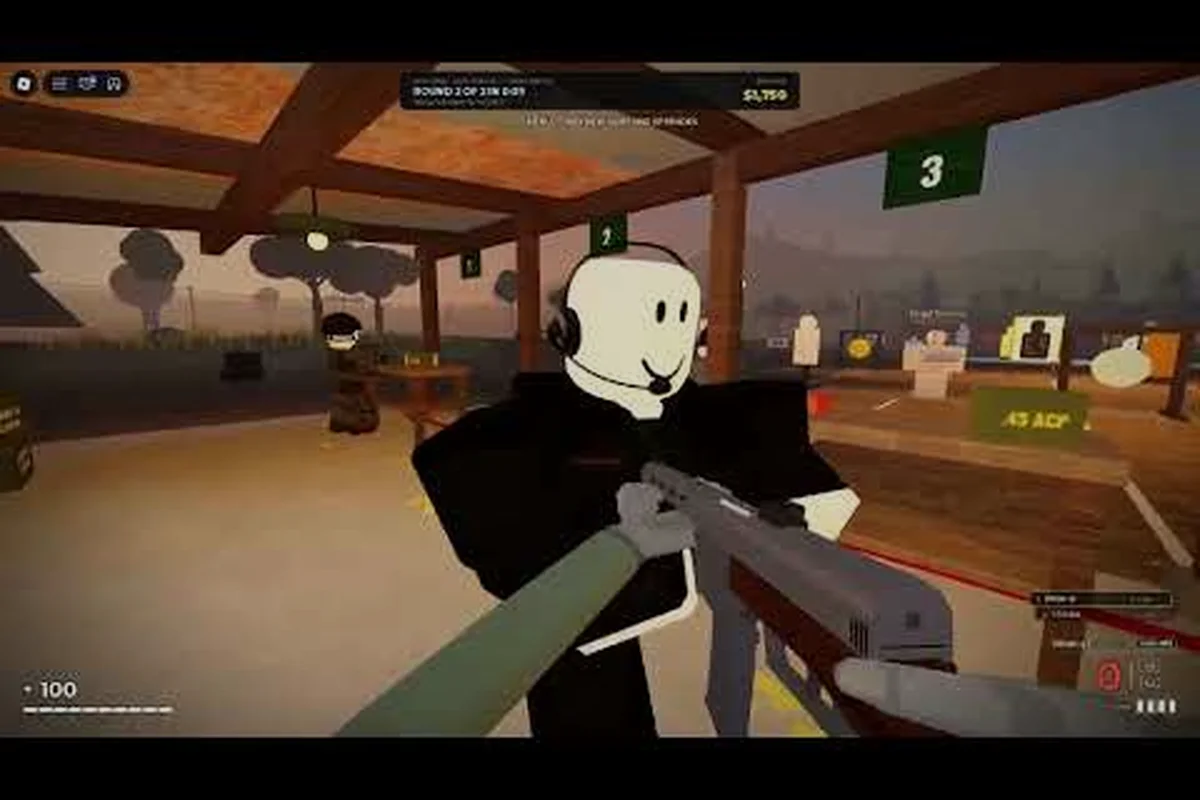
REALISTIC HOME DEFENSE Prone Controls & Fire Mode Setup
Sort out REALISTIC HOME DEFENSE prone controls plus fire mode, weapon swap, and interact keys, then tune a controller or mobile layout that fits your hands.