
Platforms & Devices
Where REALISTIC HOME DEFENSE is played — PC, console and mobile cross-platform with device-tuned controls and performance advice.
Introduction
Platforms & Devices answers a simple question for every new player: where can I run REALISTIC HOME DEFENSE, and what is the experience like on my machine? The game supports PC, console and mobile, and all three play in the same shared experience — matches are not split by device, so a keyboard player, a gamepad user and a touch player can all defend the same home together. Each platform brings a different input scheme, from the full keybind set on PC to the gamepad layout on console and the editable on-screen buttons on mobile. This category compares those inputs, explains cross-platform play, and offers practical performance and setup advice so your device feels like an advantage instead of a handicap.
Platform Comparison
| Platform | Input Scheme | Key Strengths | Suggested Setup |
|---|---|---|---|
| PC | Mouse & keyboard | Full keybind set and precise aim | Tune sensitivity; prefer stable frame rates |
| Console | Gamepad | Comfortable RT/LT and D-Pad layout | Adjust stick sensitivity for consistent turning |
| Mobile | On-screen touch | Customizable buttons for play anywhere | Edit button layout in Settings before matches |
Device Guides
PC
On PC you get the full official keybind set — Left Click to fire, Right Click to aim, R to reload, V for fire mode, Shift to sprint, C and B for stance, Q and E to lean, 1-9 to switch weapons and G to interact. This is the most precise input scheme in the game.
Console
Console players use the official gamepad layout: RT fires, LT aims, X reloads, RB switches fire mode, L3 sprints, B handles crouch and prone, the D-Pad leans, and Y or LB swaps weapons. The ergonomic layout keeps every combat input within thumb reach.
Mobile
Mobile uses on-screen buttons instead of hardware keys, and the developers confirmed you can edit the layout directly in Settings. That means you can resize and reposition fire, aim and movement buttons to match your grip and thumb reach before you ever load into a tough defense round.
Cross-Platform Play
PC, console and mobile players all share the same REALISTIC HOME DEFENSE experience, so your progress and your friends carry across devices. A keyboard user, a gamepad player and a touch player can squad up in the same match, which makes cross-platform play the best reason to invite friends regardless of what they own.
Core Mechanics
Every platform runs the same core game, but the feel changes with the input surface. PC aiming is mouse-driven, so precision and flicks come naturally and the full keybind set exposes every action directly. Console aiming is stick-driven, so sensitivity tuning matters more — a stick response that is too slow cannot track a fast attacker, while too fast an input overshoots micro-corrections. Mobile turns the experience into touch: on-screen buttons replace keys entirely, and the Settings menu lets you reposition and resize them to fit your hands. Around all three, cross-platform play means the same matchmaking pool and the same server experience, so device choice changes how you aim and move — not which opponents you face or which features you can access.
Advantages
This category converts a potential barrier into a buying-into-the-community moment: by explaining that PC, console and mobile all share one experience, the page reassures players they can play anywhere and with anyone, which is a proven search angle for Roblox games with mixed-hardware friend groups. The comparison table answers the three questions players actually type — what are the controls per platform, is it cross-platform, and how should I set my device up — in one glance. The performance and setup advice also serves long-tail searches about lag, sensitivity and mobile layouts, which are usually unanswered by shallow competitor pages.
Challenges
The risk here is that platforms content can turn into generic filler — three paragraphs that just say the game runs on PC, console and mobile without adding practical value. A second issue is balance: with only three platforms plus cross-play, the category has a smaller entity pool than weapons or guides, so it needs the setup and performance angle to stay substantial. Finally, device ecosystem details age fast — Roblox client updates, patch notes and hardware charts drift with time, so any specific recommendation should be phrased as guidance rather than eternal fact, and re-checked whenever the game's update cycle advances.
Frequently Asked Questions
Is REALISTIC HOME DEFENSE cross-platform?+
Which platform has the best controls?+
How can I improve my mobile experience?+
Do I need a powerful PC to run the game?+
Quick Tips
Match your platform to your input confidence, not the other way around. If your aim is best with a mouse, PC is your home; if a controller feels natural, console will be more consistent for you; if you mostly play on the go, edit the mobile layout until it fits. Sticking with one scheme amplifies every other tip on this wiki, because muscle memory transfers only within the same input family.
Set sensitivity before you judge a platform bad. Significantly more input problems are sensitivity issues than hardware issues — a stick or cursor that is too fast or too slow ruins aim on any device. Spend one quiet session dialing in response until turns feel predictable, then evaluate whether the platform truly limits you. Most players discover their setup was fine all along.
Take advantage of cross-platform play to stack the friend bonus. Since PC, console and mobile share one experience, your friend roster effectively includes every device. Assembling a mixed-hardware squad is not a compromise — it unlocks the friend bonus, improves your defense coverage, and turns money multiplier stacking into a routine part of every session.
On mobile, recheck your button layout after every major game update. Roblox client changes and on-screen interface shifts can move or shrink buttons without warning, so a layout that felt perfect last month might betray you mid-fight. A ninety-second Settings scan before your first session of the day protects your muscle memory from surprise.
Featured
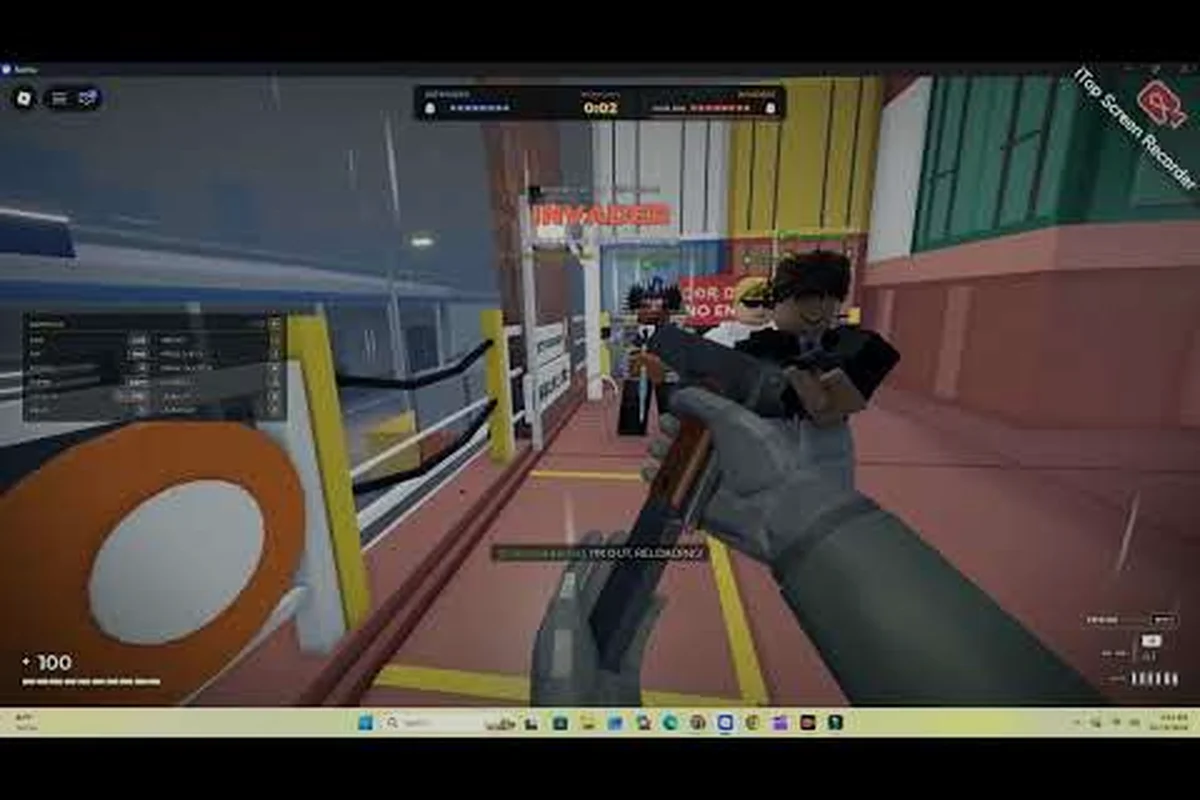
REALISTIC HOME DEFENSE Cross Platform: Play Anywhere
Play REALISTIC HOME DEFENSE cross platform on PC, console, and mobile in the same Roblox session, with device support and controller notes for each setup.
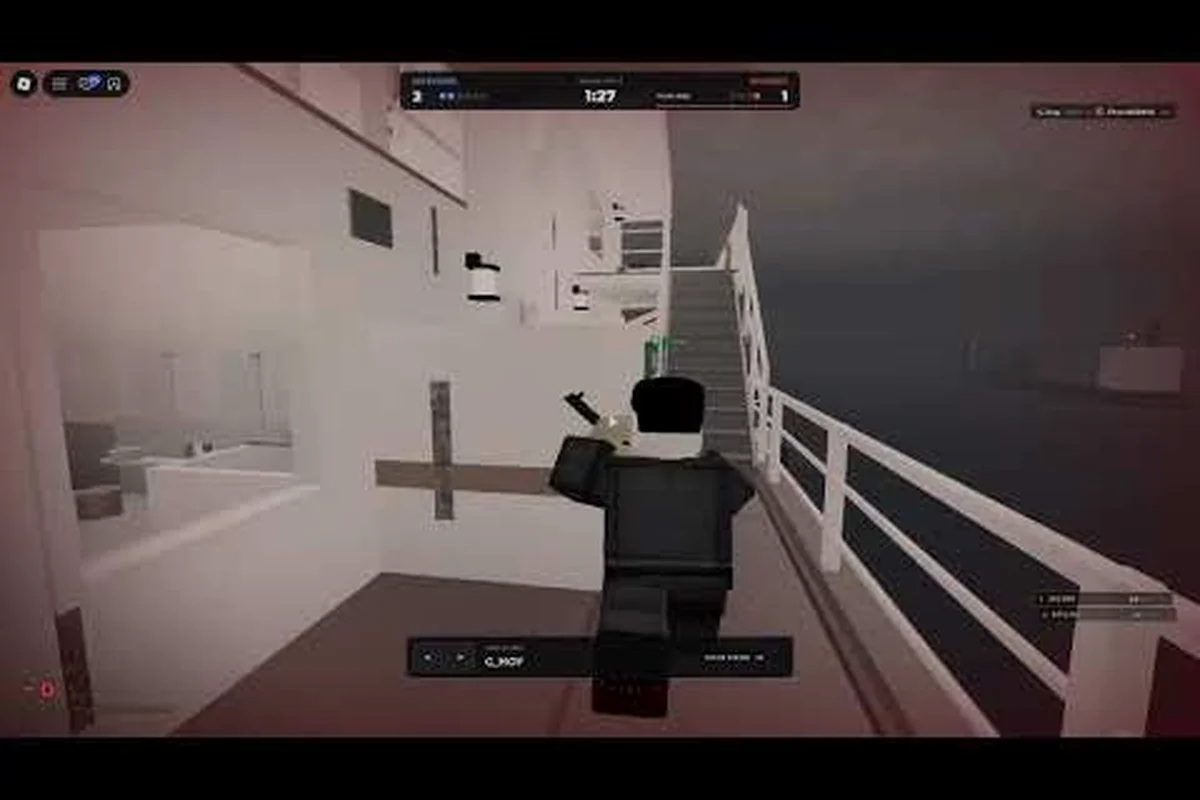
REALISTIC HOME DEFENSE Mobile Performance & Lag Fixes
Fix REALISTIC HOME DEFENSE mobile performance with FPS boosts, graphics tweaks, and lag fixes that keep your aim steady when a rush hits your front door.
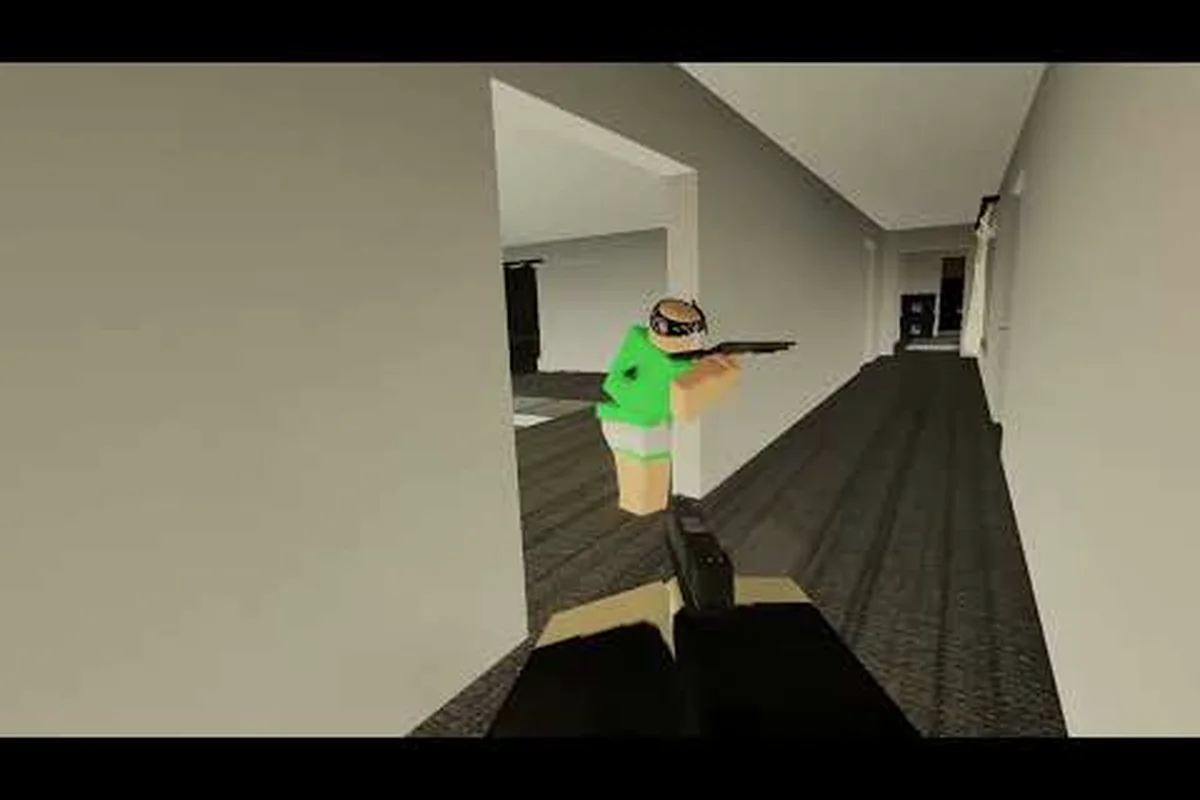
REALISTIC HOME DEFENSE on PC: Crossplay & Performance
See how REALISTIC HOME DEFENSE on PC performs, how crossplay mixes you with console and mobile players, and which settings keep your frames high.
All Articles
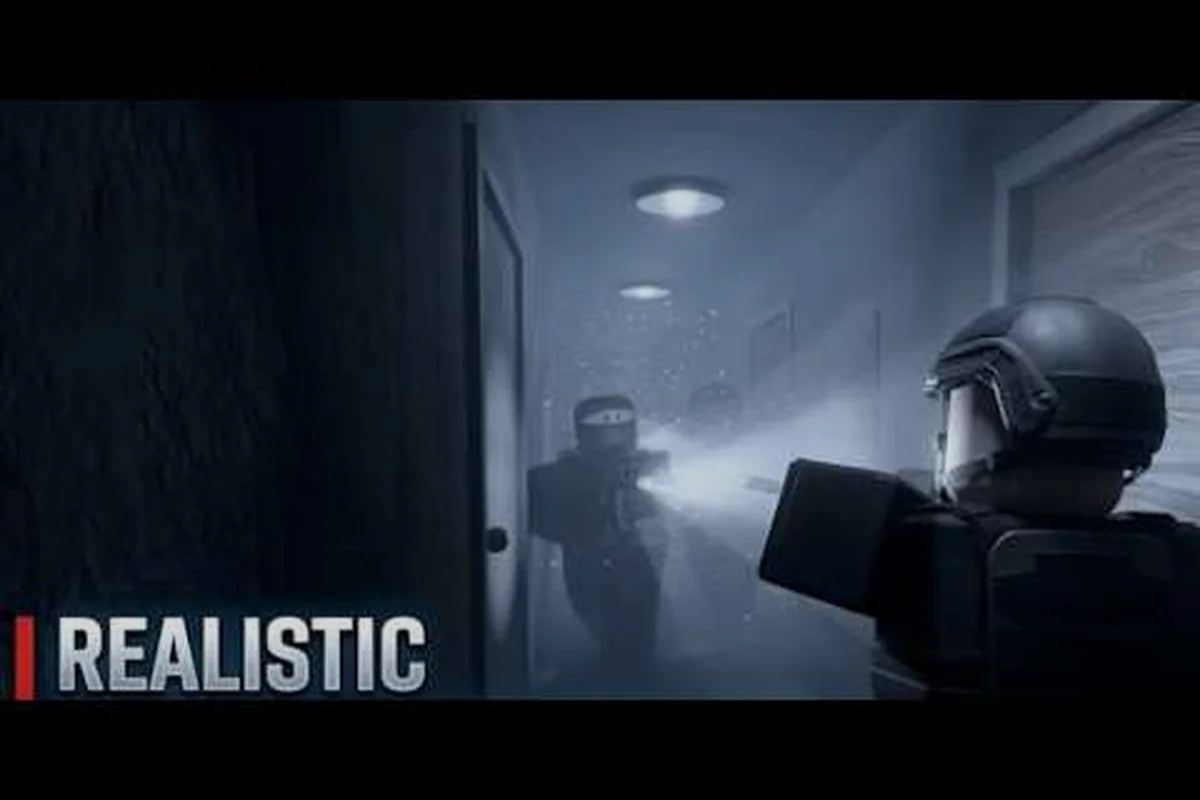
REALISTIC HOME DEFENSE Playing on PlayStation Guide
Get REALISTIC HOME DEFENSE playing on PlayStation sorted: how Roblox runs on PS5 and PS4, controller layout, and settings that keep your aim sharp.
REALISTIC HOME DEFENSE Robux Platform Access Explained
Find out why REALISTIC HOME DEFENSE needs zero Robux to play, which platforms it runs on, and how to jump into a free session on PC, console, or mobile.
REALISTIC HOME DEFENSE Touch Controls vs Gamepad
Compare REALISTIC HOME DEFENSE touch controls with keyboard, mouse, and gamepad setups to see which input keeps your shots on target in close fights.