
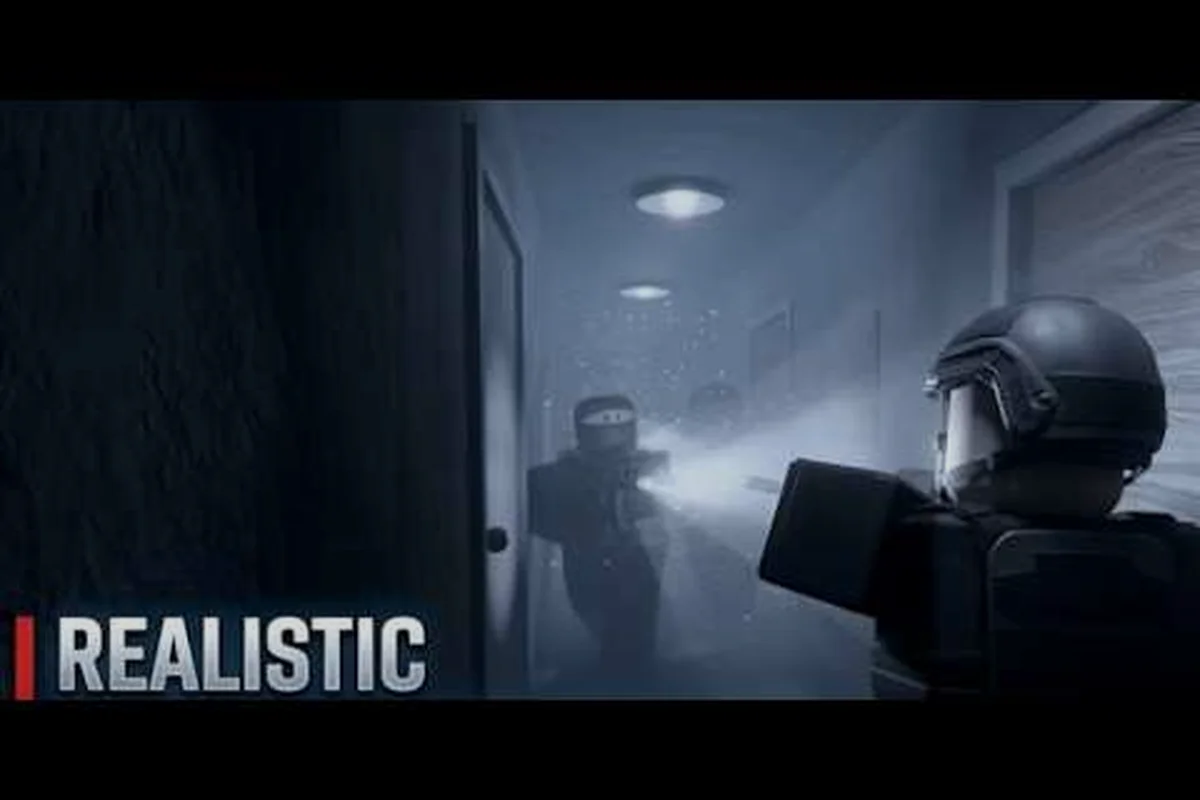
Getting your controls right in REALISTIC HOME DEFENSE is the difference between holding the hallway and getting caught mid-reload, and this control tutorial walks you through keybinds, mobile button edits, and sensitivity in one pass. A few minutes in the settings menu now saves a dozen frustrating deaths later.
Why Control Setup Decides Your First Raid
REALISTIC HOME DEFENSE is a tense, close-quarters defense game where reaction speed and clean inputs matter more than raw aim. Because intruders push through narrow doorways and tight hallways, a single misclick on a reload or lean button can end a run. That is why a proper realistic home defense control tutorial starts with the basics: understanding what each input does before you remap anything.
New players often jump straight into a match and blame lag or bad luck when they fumble the fire button. In reality, the default layout is built for a general audience, not for the split-second decisions a home defense scenario demands. Adjusting your controls early gives you three concrete advantages:
-
Faster reloads because the reload key sits where your finger already rests
-
Cleaner aim thanks to sensitivity that matches your device and grip
-
Fewer accidental inputs when you swap weapons or lean around a corner
The community walkthroughs confirm this pattern. In the no-commentary run by Trial Quest, the player cycles weapons and holds angles with almost no wasted motion, which is only possible when the control scheme feels automatic. Similarly, the let's-play by Scarlet Shadow shows how quickly a defender can reposition when the inputs are second nature.
Before touching a single slider, spend one round on defaults. Note which buttons feel awkward, which ones you hunt for under pressure, and where your thumb naturally lands. That short diagnostic round tells you exactly what to change, so the rest of this guide targets real problems instead of guesswork.
REALISTIC HOME DEFENSE Settings for Beginners: The Core Layout
The realistic home defense settings for beginners should prioritize three actions above all else: fire, reload, and aim. Everything else is secondary until those three feel instinctive. The table below breaks down the default inputs and what a beginner should aim for on each platform.
| Action | PC Default | Console Default | Mobile Default | Beginner Goal |
|---|---|---|---|---|
| Fire | Left Mouse | RT / R2 | Fire button (right) | Keep under index/thumb |
| Aim | Right Mouse | LT / L2 | Aim toggle | Reachable without moving grip |
| Reload | R | X / Square | Reload icon | Move next to fire |
| Sprint | Shift | L3 / L3 click | Sprint button | Thumb-friendly edge |
| Crouch | Ctrl | B / Circle | Crouch toggle | Away from fire |
| Lean | Q / E | LB/RB | Lean arrows | Only if you use cover |
The pattern is simple: keep the actions you use every few seconds close together, and push rare actions to the edges. On PC, most players move reload from R to a side mouse button so the left hand never leaves WASD. On console, swapping crouch off the face buttons frees your thumb for the right stick, which matters enormously when an intruder peeks a doorway.
Beginners also tend to overlook the aim toggle versus hold choice. Holding aim keeps you mobile but tires your finger; toggling locks your stance but can trap you in a slow walk. Test both in an empty server for two minutes each and pick whichever lets you strafe without thinking.
Finally, don't ignore the HUD and crosshair options buried in the same menu. A brighter crosshair and a slightly larger minimap reduce the time your eyes spend away from the action. These small readability tweaks are part of the same beginner setup and cost nothing in performance.
REALISTIC HOME DEFENSE Best Keybinds for PC Players
Finding the realistic home defense best keybinds is mostly about eliminating hand travel. Your left hand should stay anchored on WASD, and your right hand should never leave the mouse during a firefight. Any action that breaks those two rules is a candidate for remapping.
Here is a practical PC keybind set that experienced defenders gravitate toward, built around keeping your left hand on WASD and your right on the mouse: put Reload on a thumb side button, Weapon swap on the mouse wheel or keys 1-2, Crouch on a thumb key or Caps Lock, Lean on Q/E only if you actually hold angles, keep Sprint on Shift (toggle for rotations), and bind Interact to F or E within index-finger reach. The throughline is that every action your trigger finger or strafe hand would otherwise abandon mid-fight gets pushed onto the thumb, which has spare capacity during a firefight.
-
Reload → side mouse button (thumb), so the left hand never stops strafing
-
Weapon swap → mouse wheel or number keys 1-2, kept simple
-
Crouch → a thumb key or Caps Lock, never a pinky stretch
-
Lean left/right → Q and E only if you actively use corners, otherwise unbind
-
Sprint → Shift stays, but consider toggle instead of hold for long rotations
-
Interact → F or E, whichever your index finger reaches without leaving WASD
The logic behind each choice is consistency. When reload lives on your thumb, the motion becomes a reflex rather than a decision, and reflex reloads are what keep you alive when a magazine runs dry mid-fight. For a deeper breakdown of mapping every action, the full PC control mapping guide covers advanced rebinds and aim assist tuning.
One warning: don't remap everything at once. Change two or three keys, play a full round, then adjust again. Muscle memory needs repetition, and a wholesale overhaul leaves you fumbling for a week. The players who adapt fastest change one input per session and lock it in before moving on.
REALISTIC HOME DEFENSE Edit Mobile Buttons the Right Way
Mobile players have the most control over their layout, and the realistic home defense edit mobile buttons screen is where that power lives. The touch HUD is fully customizable, so you can drag, resize, and reposition nearly every button. The goal is a layout where both thumbs cover the essentials without crossing over each other.
Start with a simple rule: fire on the right, movement on the left, everything else on the edges. This mirrors the default twin-stick logic of the touch HUD, so your right thumb never leaves the fire and aim cluster while your left thumb owns the movement stick — the two never fight for the same pixel. Anchor fire, aim, and reload in the lower-right quadrant, keep the movement joystick bottom-left, and exile crouch, lean, and interact to the top corners where a stray tap can't cost you a gunfight. Then follow these steps:
-
Open the HUD editor from the settings menu and enable free placement
-
Move the fire button to the lower-right corner where your thumb rests naturally
-
Place reload directly above or beside fire so a single thumb slide reaches it
-
Shrink buttons you rarely use (crouch, lean) and push them toward the top corners
-
Enlarge the aim button slightly so you can tap it without looking
-
Save the layout and test it in a practice round before a real match
Button size matters more than most players expect. A fire button that is too small causes missed taps under pressure, while an oversized one blocks your view of the lower screen. Aim for a size where you can hit it blind, then trim it back until it stops covering the action.
Opacity is the other underused setting. Dropping button transparency to around 60-70 percent keeps the HUD visible without hiding an intruder crouched in a dark corner. For a complete walkthrough of every mobile slider, including sensitivity and graphics, the mobile settings guide expands on this layout with device-specific recommendations.
REALISTIC HOME DEFENSE Controller Sensitivity Tuning
Getting realistic home defense controller sensitivity right is the single biggest aim upgrade available to console players. Too high and your crosshair overshoots every doorway; too low and you cannot turn fast enough when an intruder flanks you. The sweet spot is personal, but the tuning process is not.
| Sensitivity Area | Too Low Feels Like | Too High Feels Like | Target Feel |
|---|---|---|---|
| Horizontal look | Can't track strafing targets | Crosshair flies past doorways | Smooth 180 in one swipe |
| Vertical look | Can't follow a crouching peek | Aim jumps to ceiling | Small controlled lift |
| Aim-down-sights | Sluggish close-range tracking | Jittery micro-adjustments | Slightly slower than hip fire |
| Deadzone | Stick drift creeps in | Inputs feel delayed | Lowest value without drift |
Tune in this order: deadzone first, then hip-fire sensitivity, then aim-down-sights multiplier. Set the deadzone as low as possible without your camera drifting on its own, because a high deadzone makes every small adjustment feel mushy. Once the camera is stable, raise hip-fire sensitivity until a full stick push turns you roughly 180 degrees, then set aim-down-sights slightly lower for precision.
Test each change against a wall or a static target before a live round. If your crosshair consistently lands short of where you intended, nudge sensitivity up in small increments; if it overshoots, ease it down. Console players who want the full button-by-button breakdown of the realistic home defense console controls guide should review the dedicated layout article, which pairs sensitivity with face-button remaps.
Mobile and Console Control Schemes Compared
The realistic home defense mobile controls guide and its console counterpart share a philosophy but differ in execution. Touch screens reward large, well-placed buttons, while controllers reward thumb-stick precision and trigger discipline. Knowing the trade-offs helps you pick the right habits for your platform.
| Feature | Mobile | Console | PC |
|---|---|---|---|
| Aim method | Tap/drag with thumb | Right stick | Mouse |
| Reload access | Custom button | Face button remap | Side mouse button |
| Biggest weakness | Button clutter | Stick drift | Hand travel |
| Best fix | Shrink rare buttons | Low deadzone | Thumb-side reload |
| Precision ceiling | Medium | High | Highest |
Mobile players should lean into customization because the HUD is the whole interface. Console players should focus on deadzone and sensitivity, since the physical controller already handles placement well. PC players get the most precision but must manage hand travel carefully.
A useful cross-platform habit is the pre-aim check: before every doorway, confirm your crosshair sits at head height. On mobile this means keeping your thumb ready on the aim button; on console it means keeping the right stick steady; on PC it means keeping the mouse level. This single habit transfers across every platform and pays off in every firefight.
Common Control Mistakes New Defenders Make
Most early deaths trace back to a handful of fixable control habits, and they compound: a beginner who over-remaps keys on day one then maxes sensitivity to compensate ends up with a layout that fails at range and a reload position they never drilled. The realistic home defense settings for beginners advice above only helps if you avoid these traps, because each one quietly overwrites the muscle memory you are trying to build. Treat every change as a controlled experiment rather than a menu tweak: swap one binding or sensitivity step, run a full live round, and note whether your first-shot accuracy and reload timing actually improved before touching anything else.
-
Over-remapping on day one — changing ten keys at once destroys muscle memory
-
Maxing out sensitivity — high numbers feel fast but ruin precision at range
-
Ignoring the reload position — the most common cause of dying mid-magazine
-
Cluttered mobile HUD — too many large buttons block your view
-
Never testing changes — a layout that feels good in the menu can fail in a firefight
The fix for all five is the same: change one thing, test it in a live round, and keep only what clearly helps. Players who treat settings as a one-time setup usually plateau, while those who iterate slowly end up with a layout that feels invisible.
Weapon choice interacts with controls too. A heavy weapon with strong kick demands lower sensitivity for tracking, while a light weapon rewards faster turns. If you are still deciding what to carry, the weapon recoil breakdown explains how each gun's kick changes the sensitivity you should run.
Final Setup Checklist Before Your First Round
Before you queue into a match, run through this quick checklist so nothing catches you off guard: confirm your fire, aim, and reload buttons sit under your right thumb without stretching, and that crouch or prone is reachable mid-strafe so you can drop behind cover the instant a breach sound plays. On controller, verify your sensitivity lets you snap a 180-degree turn toward a doorway in a single stick flick, and on mobile, double-check that edit and build buttons are sized for blind taps rather than precise aiming. If any input still forces you to look down at your screen, fix it now — a single missed reload during a home-defense hold costs you the round.
- Reload is on a thumb-reachable input
- Sensitivity lets you turn 180 degrees in one motion
- Deadzone is as low as possible without drift
- Mobile buttons are sized and placed for blind taps
- Crosshair and minimap are readable at a glance
- You tested the layout in at least one practice round
Work through it once, then leave the settings menu alone for a few matches. The whole point of a good control scheme is that you stop thinking about it. When reload, aim, and movement all happen without conscious effort, your attention shifts to the actual defense: watching doorways, holding angles, and reacting to the first sound of a breach.
That is the real payoff of this control tutorial. A clean setup does not make you a better player by itself, but it removes the friction that hides your actual skill. Dial in the inputs, test them honestly, and let the controls fade into the background where they belong.
Frequently Asked Questions
What is the most important control to change first in REALISTIC HOME DEFENSE?
Reload is the highest-value change because running dry mid-fight is the most common cause of death. Move it to a side mouse button on PC or directly beside the fire button on mobile so your hand never leaves its primary position during a firefight.
What controller sensitivity should beginners use?
Start with a deadzone low enough to stop drift, then raise hip-fire sensitivity until a full stick push turns you about 180 degrees. Set aim-down-sights slightly lower for precision. Adjust in small steps and test against a static target before a live round.
How do I edit mobile buttons without cluttering the screen?
Place fire and reload on the lower right, movement on the lower left, and push rare actions like crouch and lean to the top corners. Shrink buttons you rarely use and drop opacity to around 60-70 percent so the HUD stays readable during dark encounters.
Do PC and console players need different keybinds?
Yes, because the input devices differ. PC players should keep hands anchored on WASD and the mouse, moving reload to a thumb button. Console players should remap crouch off the face buttons and focus on deadzone and sensitivity tuning instead of key placement.
How long does it take to adjust to a new control layout?
Give yourself two or three full matches per change. Muscle memory builds through repetition, so changing one or two inputs at a time and locking them in works far better than overhauling everything at once, which usually leaves you fumbling for a week.